Code Editor
Crawlab allows users to edit code files in the browser with a light-weight online code editor. The code editor is built on top of Monaco Editor, the open-source code editor framework behind VS Code.
This is very useful if you want to make changes to the spider code on Crawlab such as settings.py and items.py. It
provides a convenient way to make changes without having to download the file, edit it locally, and upload it back to
Crawlab.
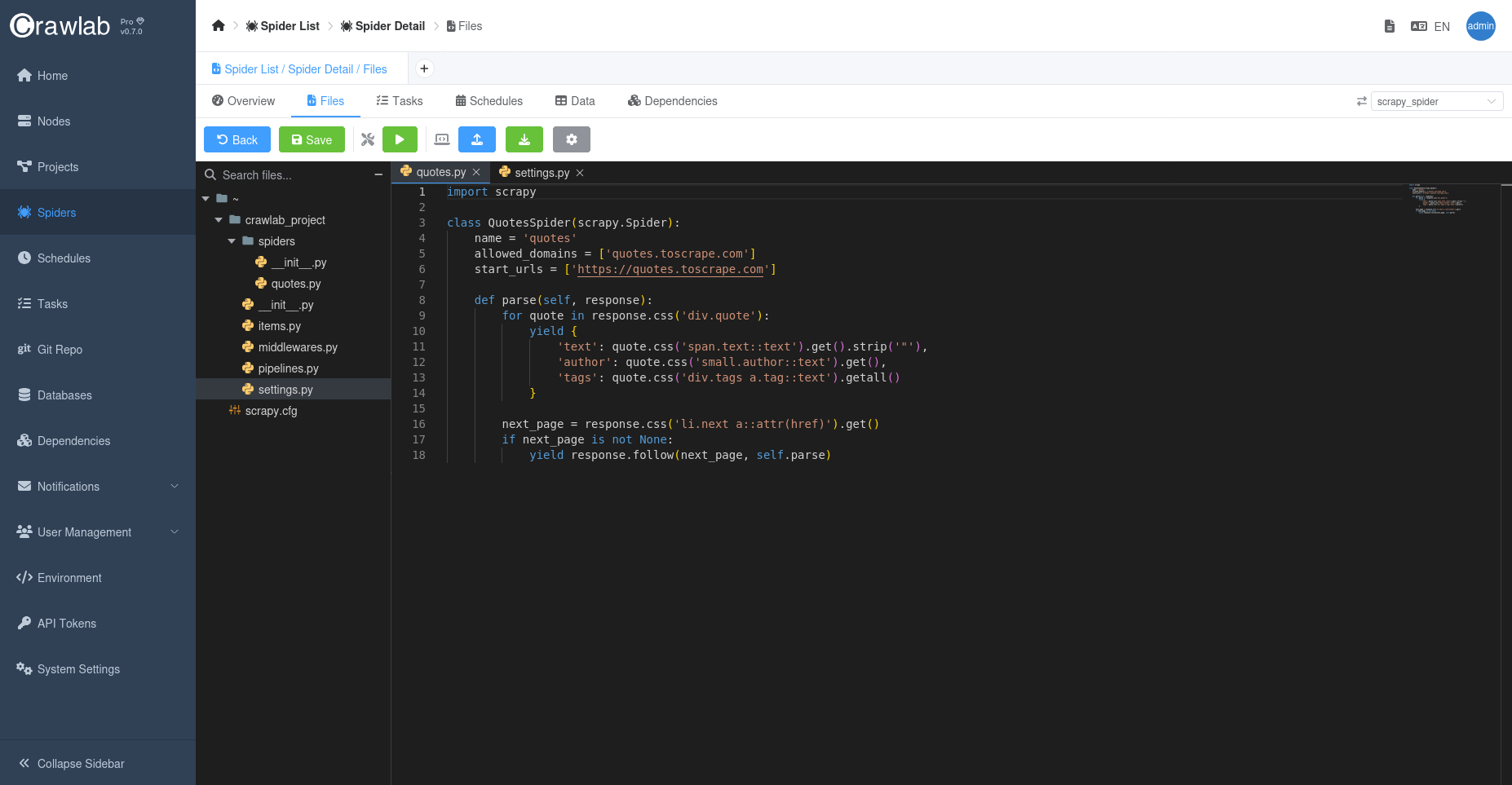
Key Features
- Syntax Highlighting: Supports Python, Node.js, Go, and other common web scraping languages
- Intelligent Auto-completion: Context-aware suggestions for framework-specific syntax (Scrapy, Colly, etc.)
- File Management:
- Create/edit files
- Directory tree navigation
- Drag-and-drop file organization
Getting Started
Accessing the Editor
- Navigate to your spider detail page
- Click
Filestab - Double-click any file to open it in the editor
Creating New Files
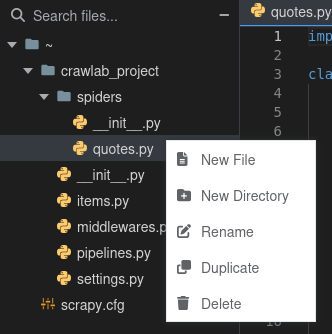
- Right-click in directory tree
- Choose
New FileorNew Folder - Enter name with appropriate extension (.py, .json, etc.)
Saving Changes
Ctrl/Cmd + S: Save current file
Usage Guide
Basic Editing
- Click on a file to open it in the editor
- Make changes to the file
- Use
Ctrl/Cmd + Sto save changes
File Management
- Use the directory tree to navigate and manage files
- Drag-and-drop files to move them
- Right-click on a file to access context-specific actions
Uploading Files
- Click
Uploadbutton - Select file(s) or folder to upload
Git Integration
info
Git integration is only available in Crawlab Pro.
You can also use the code editor to interact with Git repositories to ensure version control. Crawlab provides a simple interface to clone, pull, commit, and push changes to a Git repository.
For more information, refer to the Git Integration guide.